
incsync – incremental backups with rsync on Unix
(Ad, please don’t block)
Time Machine was always a bit troublesome for me on Mac OS X, so I did some research about how to do incremental backups with open source software. The result is the script presented in this post.
Rsync is really cool for backups (if you need bi-directional file synchronization, take a look at Unison): If you specify a source and a target directory, rsync makes sure that files are copied from target to source or removed from target until both directories have the same content. Thus, whatever the state of source and target, after invoking rsync, the target is an exact copy of the source. Rsync has command line options that allow one to only back up changes relative to a “previous” directory:
- Usage: incsync.sh [timestamp]
- No arguments: Perform a new backup with the current time as a timestamp.
- One argument – a timestamp: Continue a previous backup.
- What it does: Each time, it is invoked, only what has changed (since the last invocation) is backed up, in a new directory with a time stamp.
- How it works: incsync uses the open source tool rsync for incremental backups. rsync uses Unix hard links (references to files) to do so: Before creating a new backup, one makes a complete copy of the last backup, but the copy does not contain files, only hard links to files. Then one brings the copy up to date with the source directory. Afterwards, the copy looks like a complete backup, but consumes relatively little space on disk. The kicker is that you could now delete the previous backup and the newly created directory would still contain a complete backup. The reason lies in Unix’s handling of hard links: it only deletes a file after there are no more references to it.
- Inspiration: This script has been inspired by the article “Time Machine for every Unix out there”.
- Download: on GitHub at incsync.

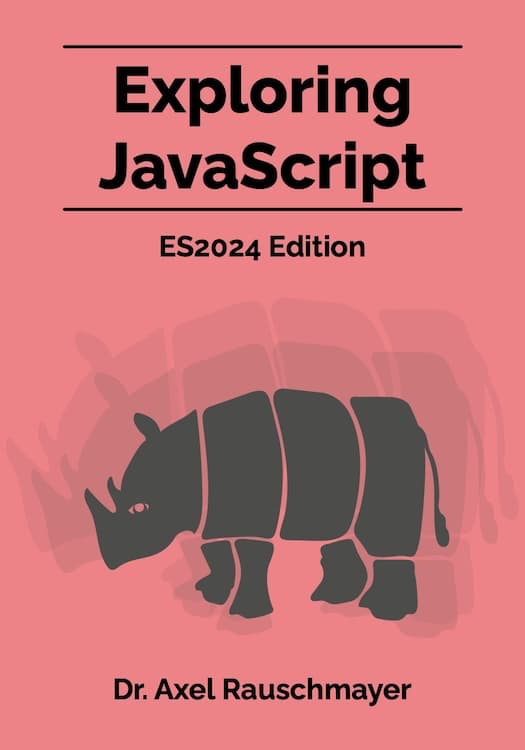
Exploring JavaScript
Book (free online) and exercises
Book (free online) and exercises

Deep JavaScript
Book (free online)
Book (free online)
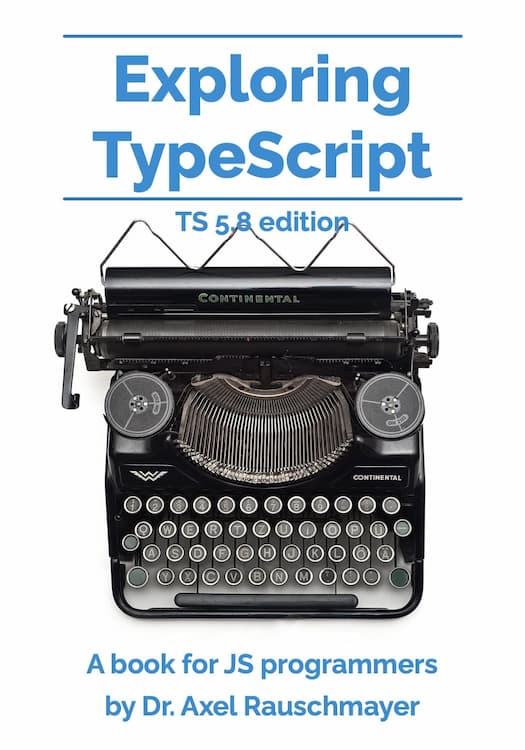
Exploring TypeScript
Book (free online)
Book (free online)
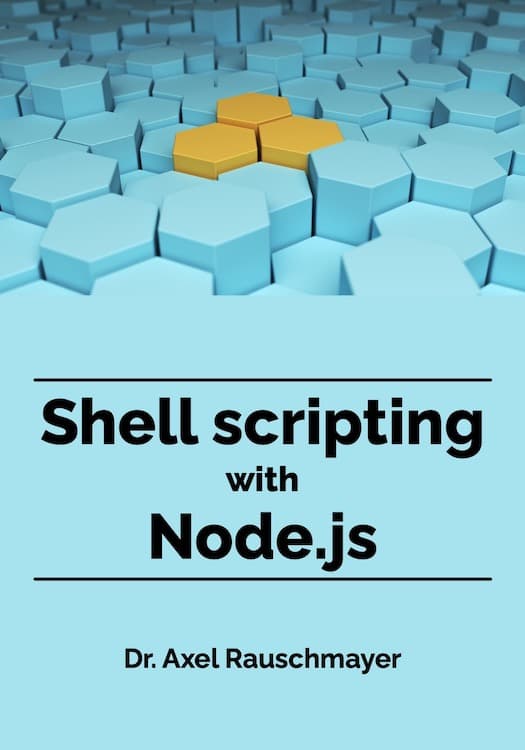
Node.js shell scripting
Book (free online)
Book (free online)

ECMAScript News
Newsletter (free)
Newsletter (free)